Do it on GustKit
Drop one audio file
Video and pictures are refused. If the voice is the soundtrack of a clip, extract the audio first and normalize that file.
Pick a target
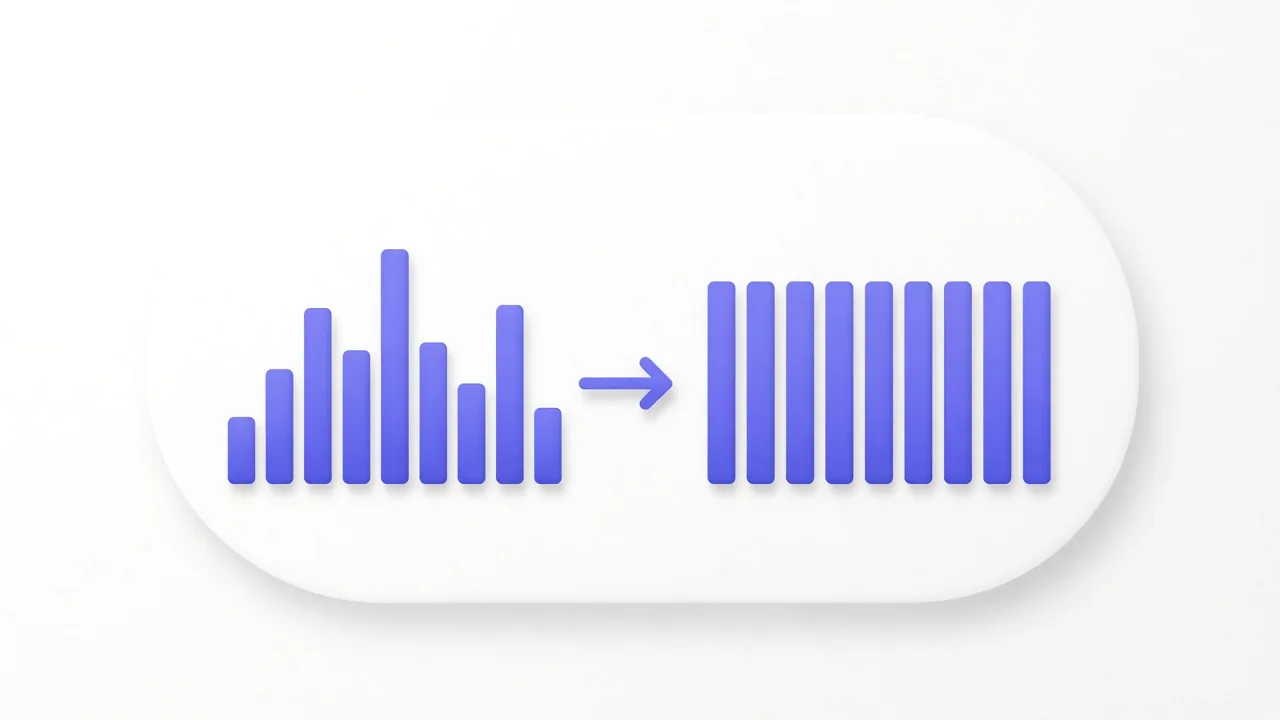
Speech aims at -16 LUFS and fits a voice note. Music aims at -14. Quiet aims at -23, for a file that should sit lower. A peak ceiling keeps a sudden spike from clipping as hard.
Normalize and compare
Press Normalize audio. The file is encoded again at 48 kHz in the same kind: WAV stays WAV, MP3 stays MP3. Play the download next to the original.
Chain a different job only if you still need it
Noise is still noise, only at a new loudness. Reduce hiss first if that was the real problem. Change volume only if you want a simple percent after the level is already steady.
A target, not a knob
GustKit uses FFmpeg loudnorm in one pass. It looks at how loud the file already is and shifts it toward the target you picked. A file that is already louder than the target gets quieter. A quiet memo gets louder, up to the peak ceiling. That ceiling is there so one clap does not turn into distortion just because the rest of the file was soft.
Change volume is the other control. It multiplies every sample by a percent. A quiet memo and a loud song get the same boost, so one of them can distort. Use that page when you know you want half as loud, or twice, and you will check the peaks yourself. Use this page when you want a level you can put next to another file.
What it will not repair
Normalize does not remove hiss, rumble, or a noisy room. If you lift a quiet recording, you also lift whatever was in the background. Run Reduce noise first when the complaint is noise, then normalize the cleaner download. Doing it backwards makes the hiss louder and then asks the denoise filter to chase it.
It does not change speed or pitch, and it does not trim silence off the ends. Those are other pages. It also does not open a video. Extract audio pulls an MP3, M4A, or WAV out of a clip. Normalize that download. If you need the picture back with the new soundtrack, add the audio to the video on the page made for that, after you are happy with the level.
The file is encoded again
This is not a tag edit. The samples are written again at 48 kHz, still in the same container type. A second encode is a small generation of loss on MP3. Keep the original if this file is the master. For a voice note you are about to send, the new level matters more than that generation.
Files longer than the limit on the page are refused, because the whole file is re-encoded here. Compress audio can make a smaller MP3 after the loudness is right. Compressing does not set LUFS by itself.
It stays a local file
The first visit downloads FFmpeg. Later visits reuse the cache. GustKit does not fetch audio from a link, and it does not upload the file you drop. Close the tab and the working copy is gone.
Match the target to the material. Speech for a memo, music for a track you want near streaming loudness, quiet when the file should not jump out. Then listen once on the device that will play it.
Frequently asked questions
Will a loud file get quieter?
Yes, when it is already above the target. A quiet file gets louder, up to the peak ceiling. The point is to land near one loudness, not to make everything as loud as possible.
Is this the same as the volume percent?
No. Change volume is a percent applied to the samples. Normalize measures the file and aims at a loudness in LUFS.
Can I normalize a video soundtrack here?
Not on this page. Extract the audio, normalize that file, and add it back to the video only if you still need the picture.
Tools for this job
- Normalize audio Drop an audio file, pick a loudness target, and download a file that sits nearer that level. The audio stays in this tab.
- Change volume Drop an audio file, pick a quieter or louder level, and download. 100% is the sound you already have. Nothing is uploaded.
- Reduce noise Leave medium, or pick light or strong, then download the same file type. Strong pulls more hiss down than light. The work runs in this tab.
- Extract audio Drop a video, pick MP3, M4A or WAV, and download the soundtrack. The picture stays behind. Nothing is uploaded.
- Compress audio Drop one audio file, pick a bitrate, and download a smaller file. WAV becomes MP3. The audio stays in this browser.
More guides
Audio
How to reduce hiss in a short audio file
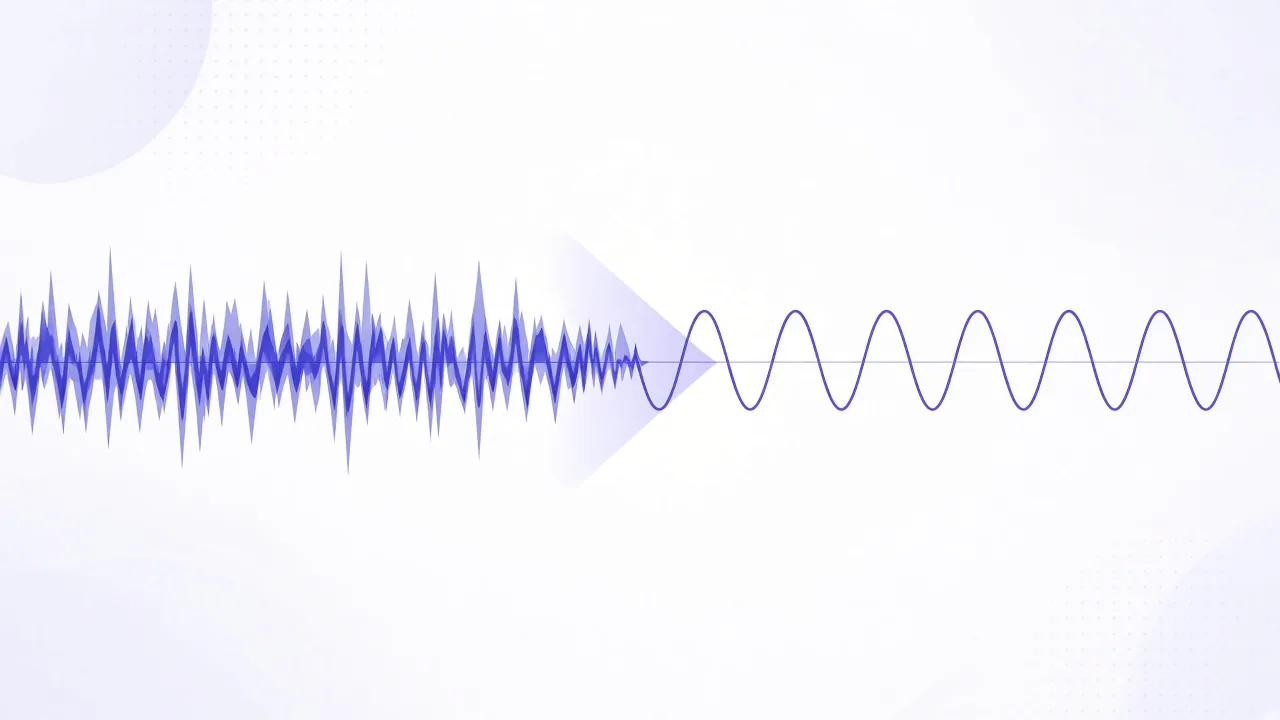
A voice note recorded in a kitchen often carries a steady hiss from the room or the mic. Reduce noise lowers that hiss in this browser tab. It is not a studio restoration, and it is not the same as making the quiet parts silent or making the whole file louder.
Read the guide
Open the tool: Reduce noise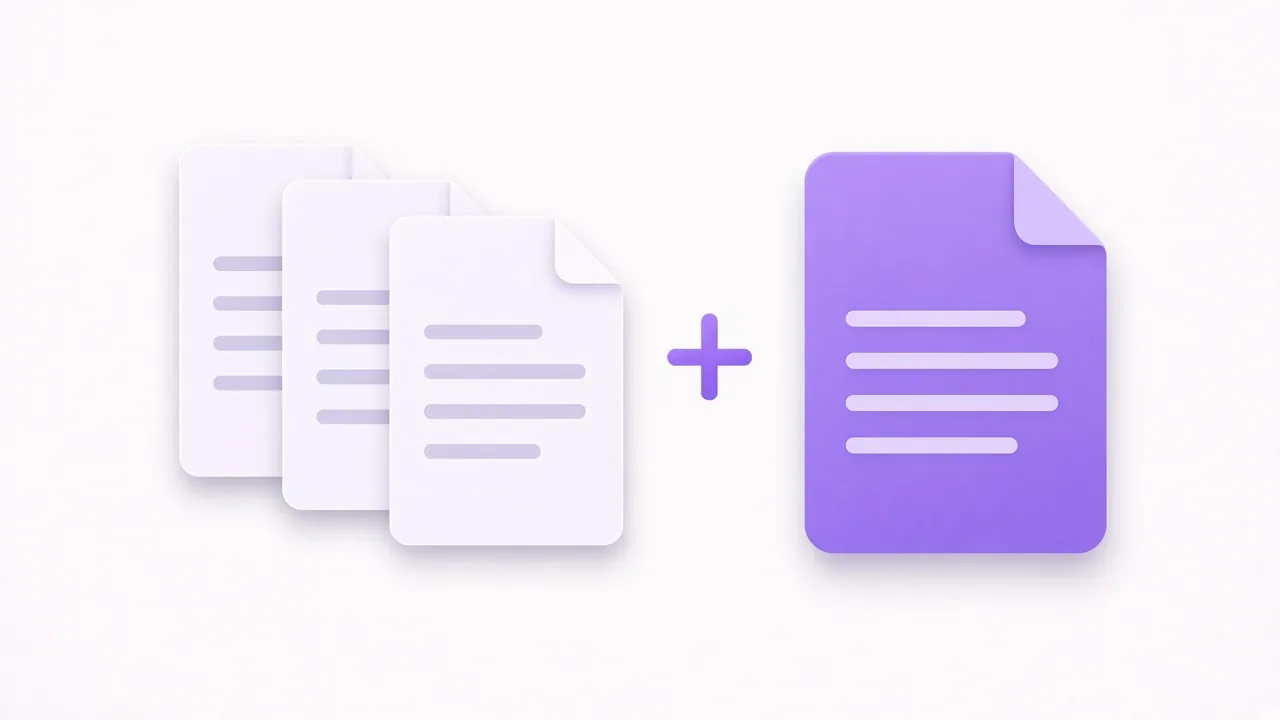
Organize PDF
How to merge PDF files without uploading them
A contract, a receipt, and a scan often need to travel as one attachment. Merge PDF stacks those files in the order you set. The pages are copied in this browser tab. Nothing is sent to a server.
Read the guide
Open the tool: Merge PDF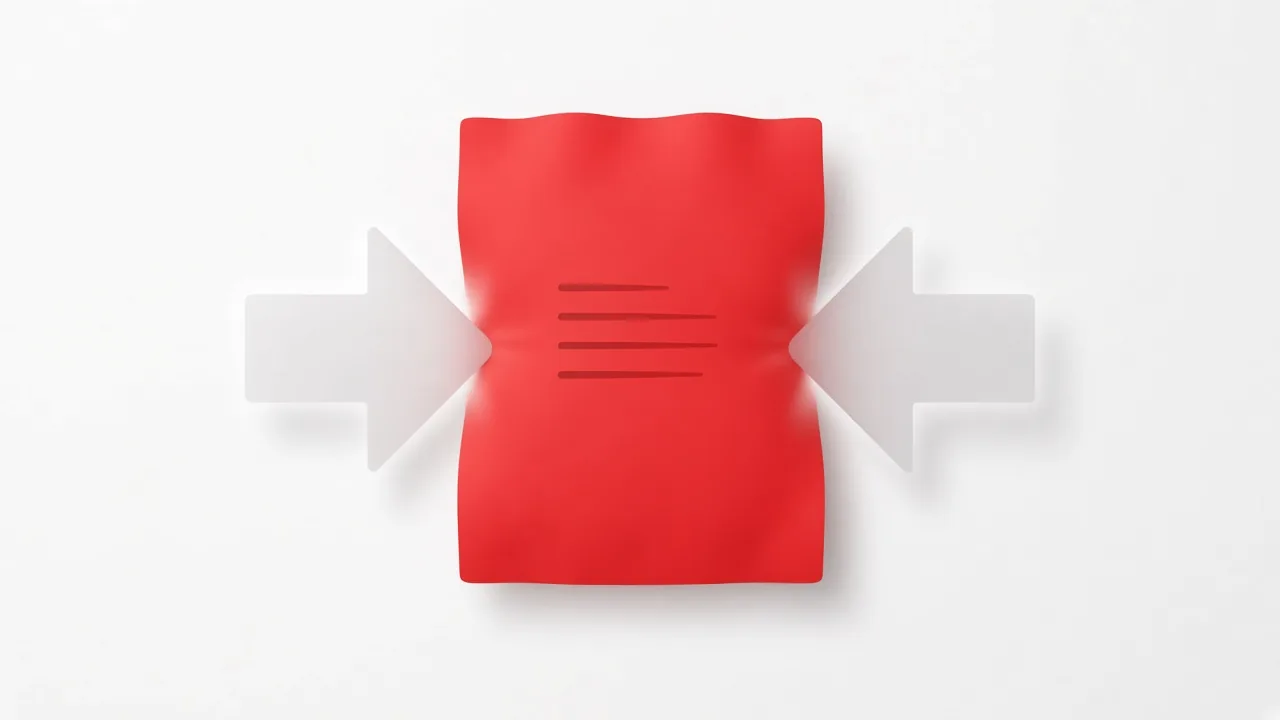
Compress and convert
How to compress a PDF without uploading it
A portal that rejects a large attachment does not care why the PDF is heavy. Compress PDF tries to make it smaller on your device. The useful part is knowing which mode matches the file you have, because the two modes do different things.
Read the guide
Open the tool: Compress PDF