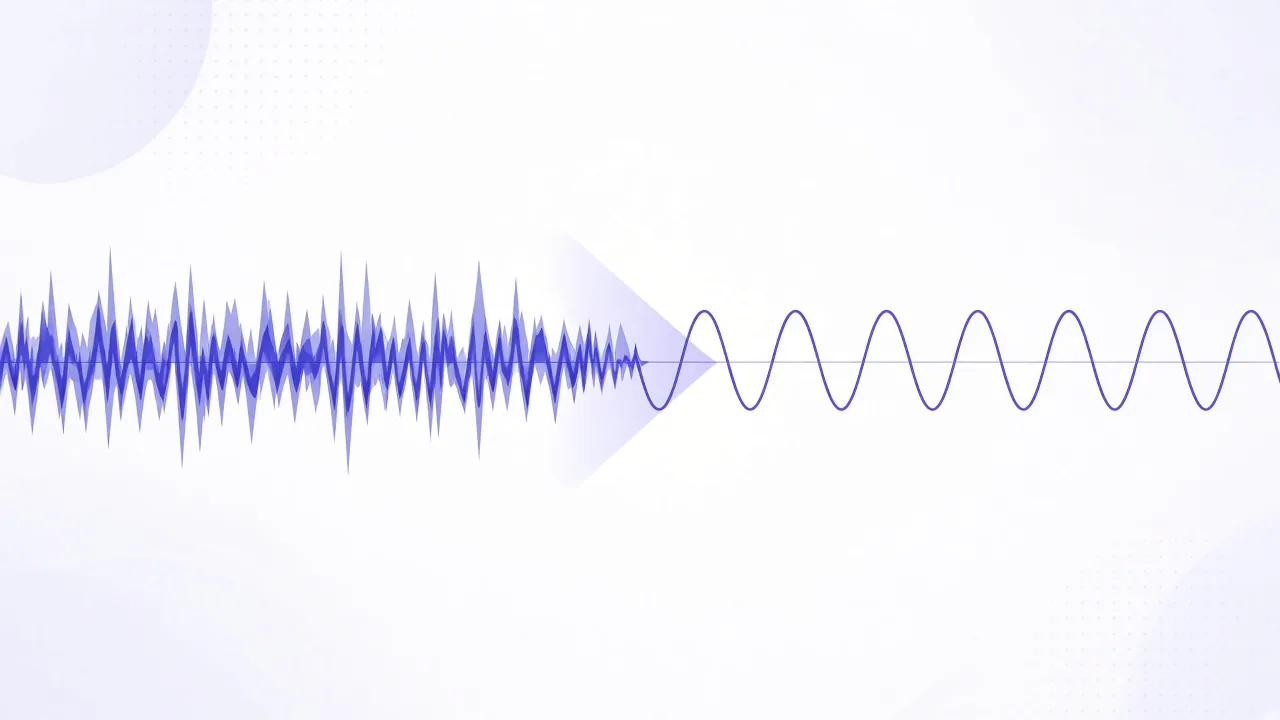
Do it on GustKit
Drop an audio file
MP3, WAV, M4A, OGG, and FLAC are the files this page expects. A photo or a video is refused. Extract the soundtrack first if the voice is still inside a video.
Pick a strength
Leave medium. Choose light when the voice is already clean and you only want a little off the hiss. Choose strong when the noise is obvious and you can accept a duller voice.
Run it and keep the original
Press Reduce noise and download. The extension stays the same: a WAV comes back as WAV. Play it next to the original before you delete anything.
Fix loudness or gaps afterwards
If the voice is now clean but too quiet, normalize it. If the problem was silence between sentences, that is a noise gate, not this page.
What afftdn is doing
GustKit runs the FFmpeg afftdn filter. It looks for a steady noise floor and pulls that floor down. Light uses a gentler reduction. Strong uses a higher one. The length of the file stays about the same, and the file type stays the same. It does not change the tempo, and it does not reverse the audio.
A voice that was already clean can sound dull on strong, because more of the signal is treated as noise. That is the trade. Medium is the default for a reason. If strong muffles the consonants, go back to the original and try light.
Hiss is not a quiet gap
Three jobs get mixed up. This page lowers noise across the file. Noise gate turns the quiet parts down, which helps when a room tone sits between words and you want those gaps closer to silence. Normalize audio moves the whole file toward a loudness target. It can make a quiet memo easier to hear, and it can also make the hiss easier to hear, so denoise first if the hiss is the complaint.
A highpass filter cuts bass rumble. Fade shapes the start and the end. None of those replace afftdn. Do one job, listen, then open the next page on the download.
Short files, on purpose
The page is for a short audio file, up to the limit shown beside the button. A long podcast is the wrong job for a single-threaded encode in a tab. Trim audio can cut the minute you care about before you denoise it. Compress audio makes a smaller file after the voice sounds right. Compressing first does not remove hiss.
GustKit does not fetch audio from a link. You drop a file you already have. Leave the tab open until the download appears.
Listen before you send it
Noise reduction can leave a watery or muffled tail if the strength is too high. Headphones make that easier to hear than a laptop speaker. If the original is clearer, keep the original. The tool does not overwrite it.
The processing stays in this tab. A private voice note is a good fit for that. Closing the tab drops the working file. It does not delete the one in your folder.
Frequently asked questions
The hiss dropped and the file is still WAV. Did it work?
Yes. The extension stays. The length stays about the same. Strong pulls the noise down more than light. Compare both against the original.
Why does a clean voice sound softer on strong?
Strong treats more of the signal as noise, including parts of the voice. Use light or medium when the voice should stay bright.
Can I denoise and normalize in one step?
No. Reduce the noise first, then open Normalize audio on the download. Doing it the other way can boost the hiss before you remove it.
Tools for this job
- Reduce noise Leave medium, or pick light or strong, then download the same file type. Strong pulls more hiss down than light. The work runs in this tab.
- Normalize audio Drop an audio file, pick a loudness target, and download a file that sits nearer that level. The audio stays in this tab.
- Noise gate Pick light, medium or strong, then download the same file type. Quiet noise drops. A note that is already loud stays. The work runs in this tab.
- Compress audio Drop one audio file, pick a bitrate, and download a smaller file. WAV becomes MP3. The audio stays in this browser.
- Trim audio Play the file, mark the start and end, and download just that part. Great for ringtones, clips of a recording or the important bit of a voice note.
More guides
Audio
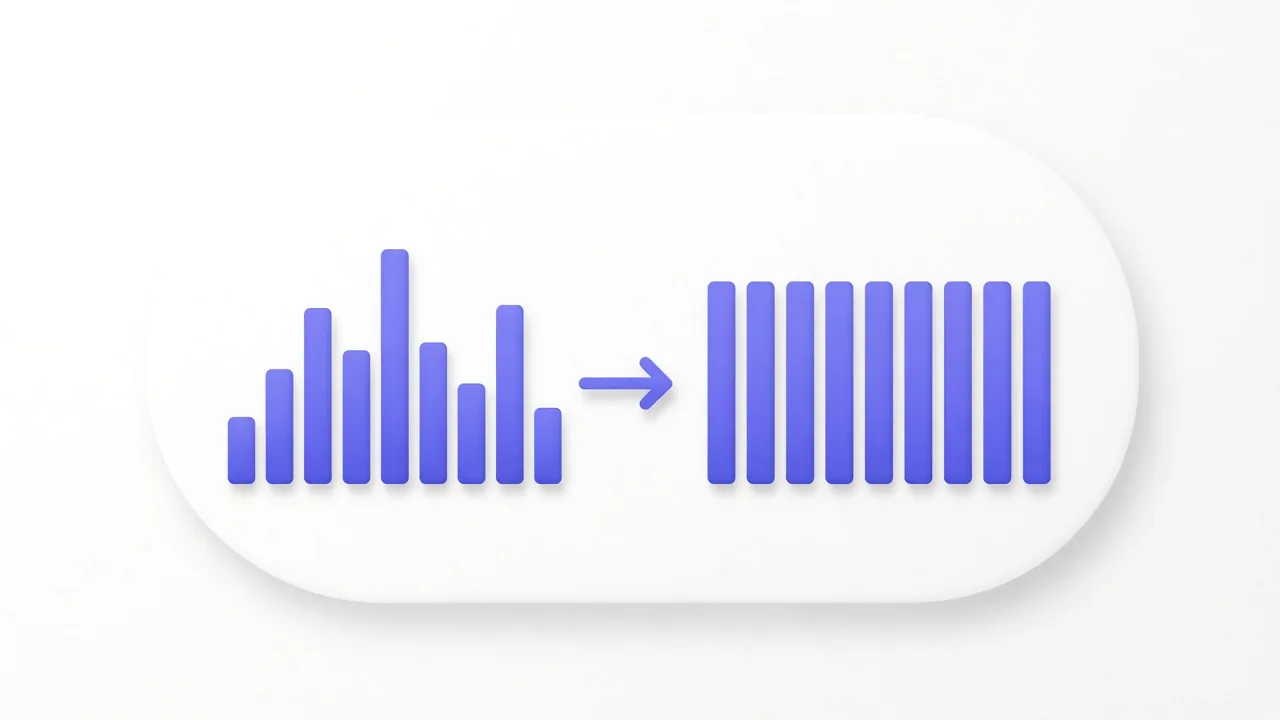
How to normalize audio loudness on your device
Two voice notes recorded on different days rarely sit at the same loudness. Normalize audio measures the file and moves it toward one target, in this tab. A percent slider does not do that. A percent treats a whisper and a shout as the same multiplication.
Read the guide
Open the tool: Normalize audio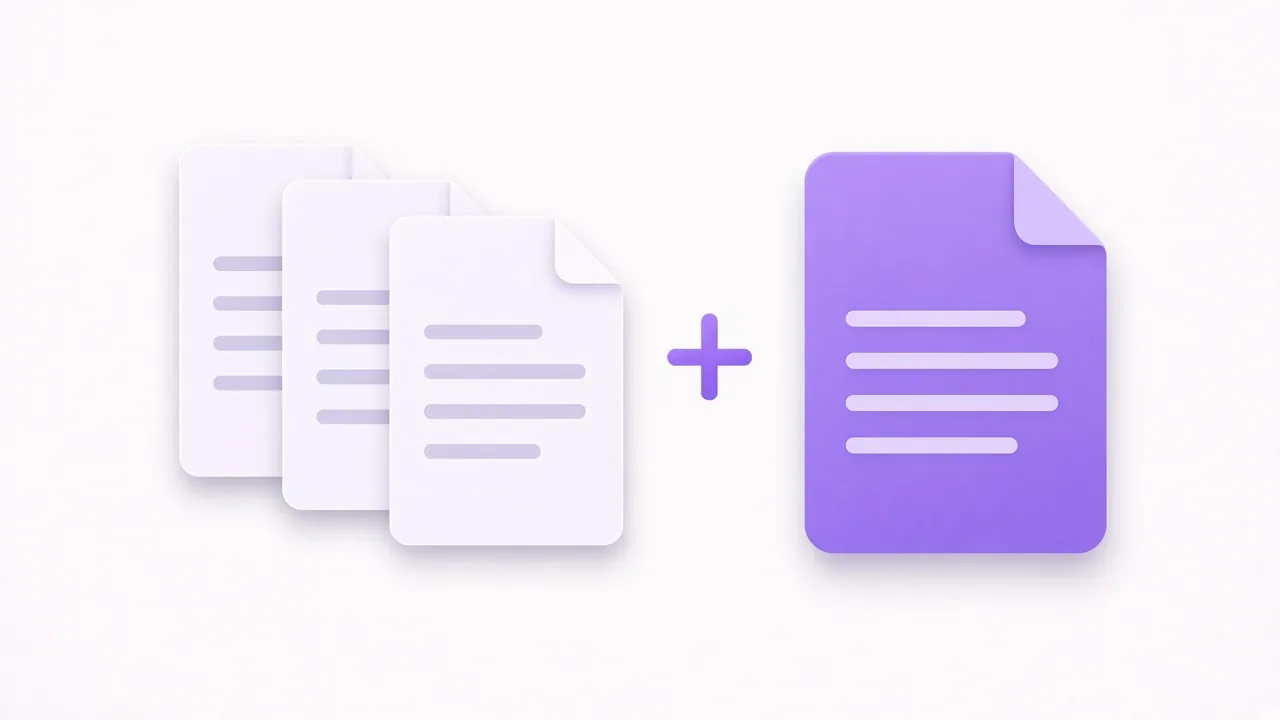
Organize PDF
How to merge PDF files without uploading them
A contract, a receipt, and a scan often need to travel as one attachment. Merge PDF stacks those files in the order you set. The pages are copied in this browser tab. Nothing is sent to a server.
Read the guide
Open the tool: Merge PDF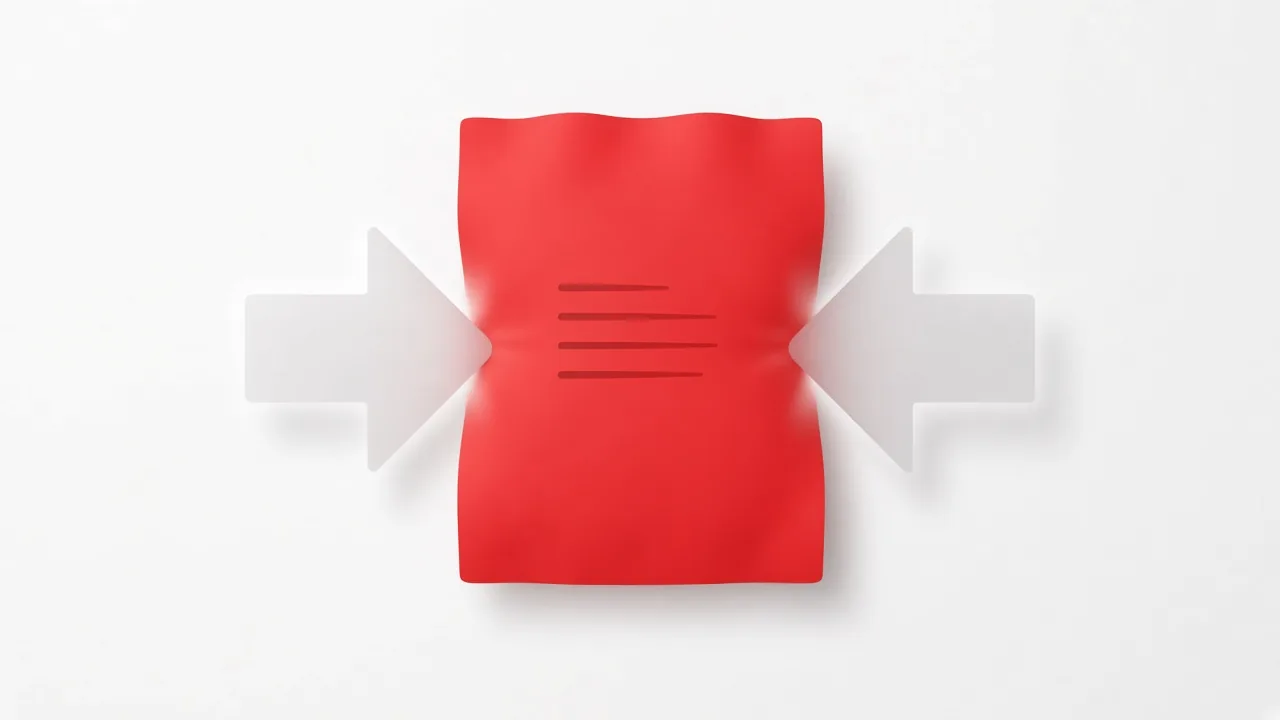
Compress and convert
How to compress a PDF without uploading it
A portal that rejects a large attachment does not care why the PDF is heavy. Compress PDF tries to make it smaller on your device. The useful part is knowing which mode matches the file you have, because the two modes do different things.
Read the guide
Open the tool: Compress PDF